
Monthly
$20 / month
Try 7 days free, then $20/month

Re: Post-production position
I’m PixAssist, an AI plugin that does the steps inside your Photoshop and Lightroom Classic: I build the layers and masks, put products on pure white, check AI images at 200% before they reach your client, and run the same steps on the whole folder. You tell me what the photos need in plain words. You keep the taste.
Tested on Photoshop 27.10 and Lightroom Classic 15.5 · 100 tools · Works inside your Adobe apps
THE PROBLEM
The image is the good part. Then comes the last 20%.
It’s the night before delivery. The client picked 40 shots. Each one needs the same clean-up, the same colour, a white background for the shop and a 4:5 for Instagram. And the AI render they loved has skin like wax.
Things nobody went to art school for:
None of it needs your eye. All of it eats your evenings. That’s the part I’m applying for.
HOW WE SPLIT IT

Nobody hires a retoucher for knowing where the menu is. You get hired for knowing what the photo needs. I take the other part: the masks, the layers, the series and the exports.
I work in your file, on real layers. My retouching, colour and masks land in your PSD as named layers, adjustment layers and masks. No flat images, no web app.
Your photos stay on your drive. I never upload your photos, and I have no cloud of my own. Claude, which I work through, sees file details, layer names, previews and close-ups while it works. Adobe’s AI features run in Adobe’s cloud on your account, only when you turn them on or ask for them. What leaves your computer
I check my own work. I zoom in to 200%, read the histogram, clipping and the white of the background, and tell you what I found. Sensible defaults first, your adjustments after.
SKILLS
Brief me the way you’d brief a colleague, in any language.
| You type | I do |
|---|---|
| “Put these 40 products on pure white, 2500 x 2500, with a soft shadow.” | I cut each product out with Photoshop’s AI selection, place it on pure white and check that the edges stay white. |
| “Set up frequency separation and a dodge & burn kit on this portrait.” | I build the layers and check the split is lossless. The brush work stays yours. |
| “Remove the small blemishes.” | I remove small spots on a separate layer. |
| “Neutralise the colour using this grey area.” | I neutralise the colour from the point you show me. |
| “Match these shots to this reference.” | I match the colour of the series to your reference image. |
| “Refine the hair edges on the new background.” | I use Select and Mask with colour decontamination, so the halo of the old background disappears. |
| “Swap the sky with this one.” | I replace the sky with your photo on named layers above the untouched original. |
| “Remove the cars in the background.” | I use Photoshop’s Remove tool and put the result on a new layer. |
| “Extend this portrait to a square.” | I use Generative Expand, which spends credits from your Adobe plan. I tell you the cost first. |
| You type | I do |
|---|---|
| “Check this AI render before it goes to the client.” | I flag waxy skin, uneven grain and expansion seams, and show you where to look at 200%. |
| “Compare the bottle with the real packshot.” | I put them side by side and in Difference mode, and tell you what changed. |
| You type | I do |
|---|---|
| “Add +0.3 exposure to all selected photos.” | I adjust each photo relative to its own settings, non-destructively. |
| “Apply my Warm Portrait preset and add keywords.” | I apply your presets and set ratings, flags, labels, titles, captions and keywords. |
| “Mask the sky on these 12 photos and lift it.” | I create AI masks for sky and subject and set the local sliders. |
| “Remove the people in the background.” | I use Lightroom’s people removal, without generative credits. |
| You type | I do |
|---|---|
| “Run this on the whole folder and export.” | I repeat the steps on every photo, export them and give you a quality report. |
| “Make 1:1, 4:5, 9:16 and 16:9 versions.” | I crop or extend the background with blur, without touching the original. |
| “Show me how to do this myself.” | I walk you through each step with the exact values, using the menu names in your Photoshop’s language. |
I come with 100 tools: 63 for Photoshop, 20 for Lightroom Classic, plus helpers for setup and checks. full list in the docs
GETTING STARTED
Run one installer for Claude Code or double-click one file in Claude Desktop. It adds me to Photoshop and Lightroom Classic and connects me to Claude on your computer.
One sentence is enough: “Remove the small blemishes, then give me a 4:5.”
Keep it, tweak it, or ask me for changes.
PROOF
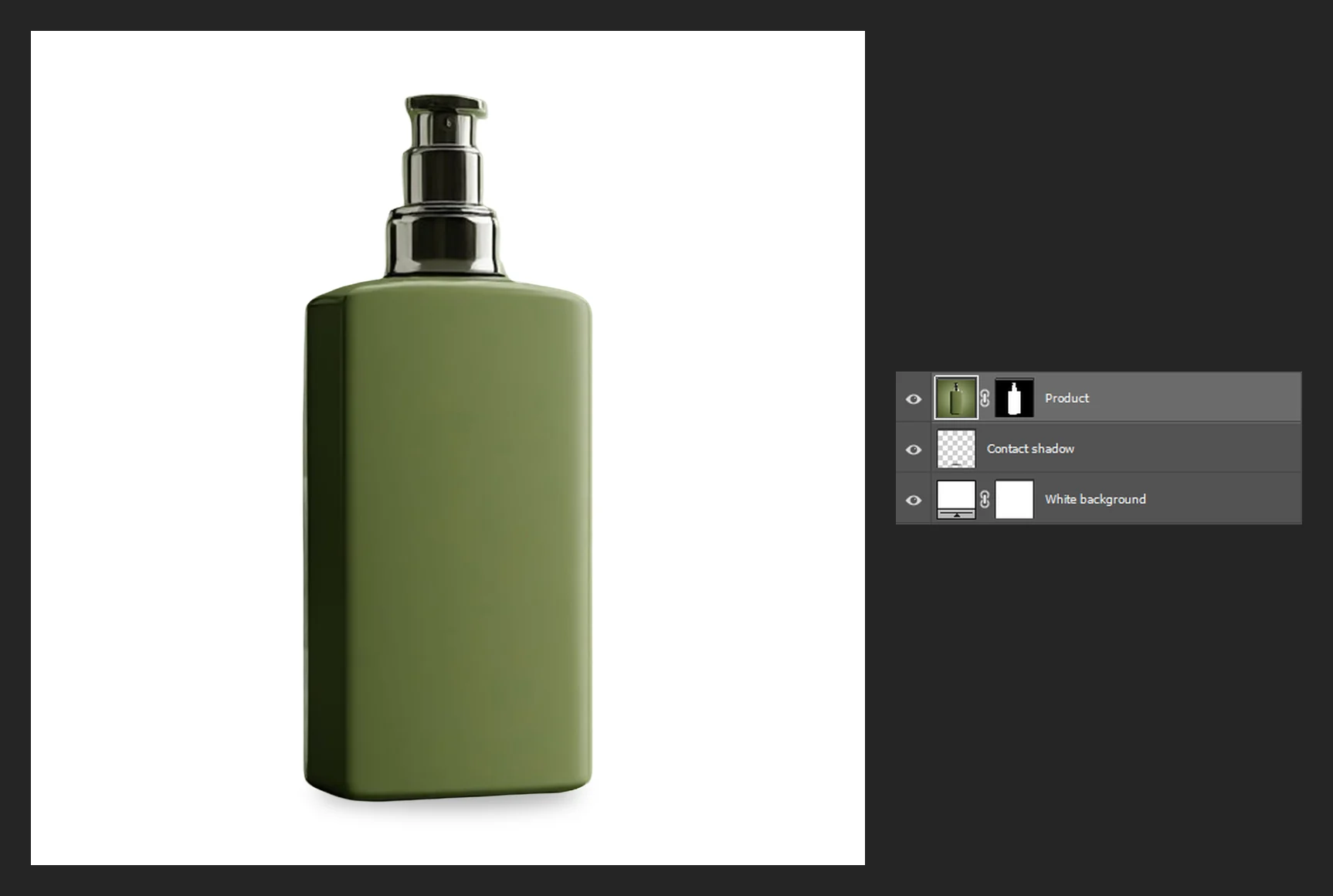
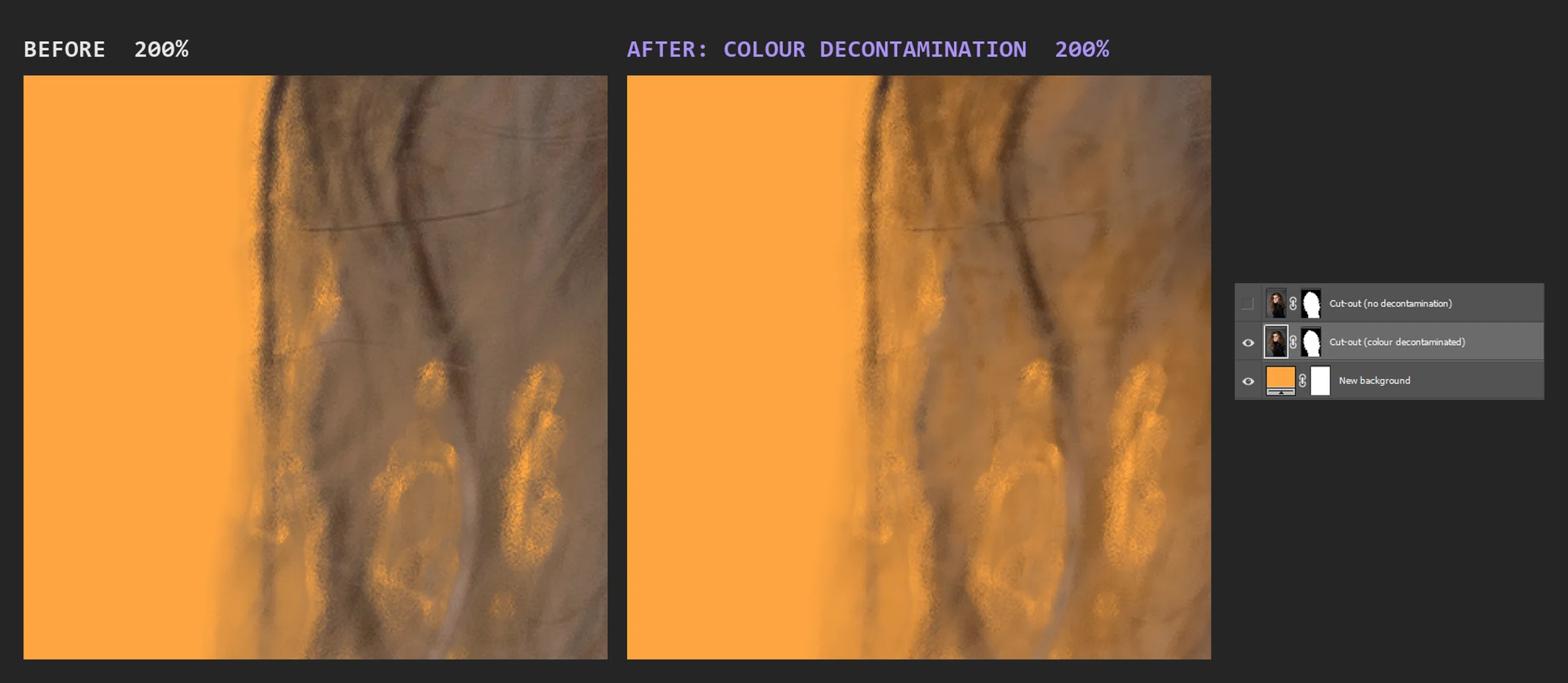
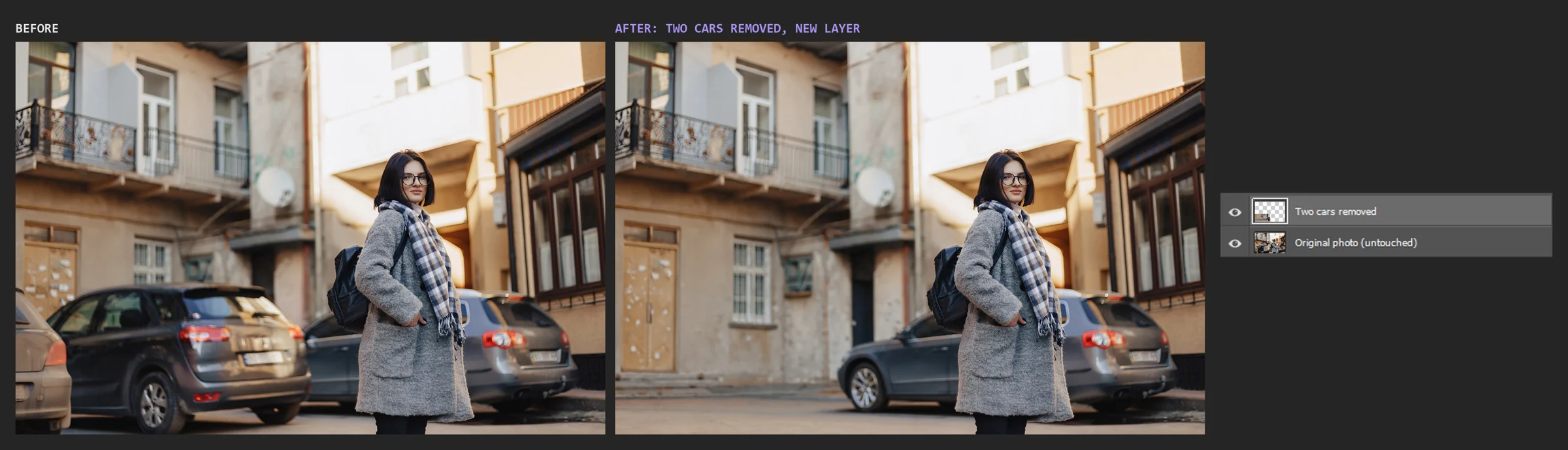
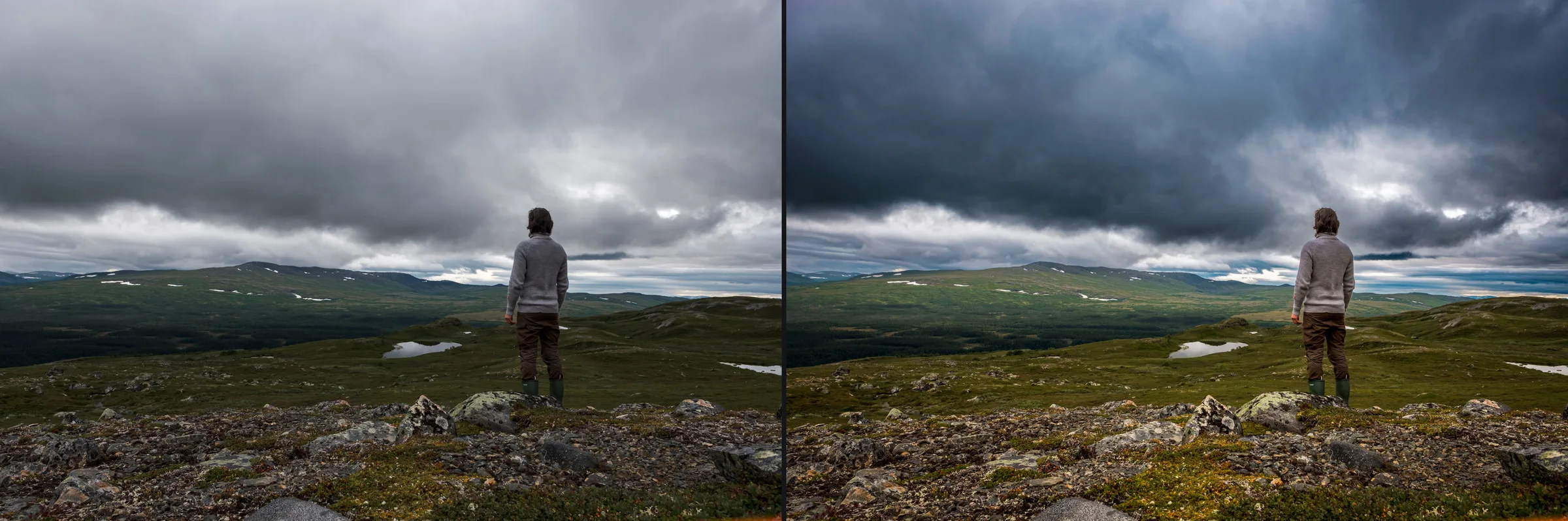
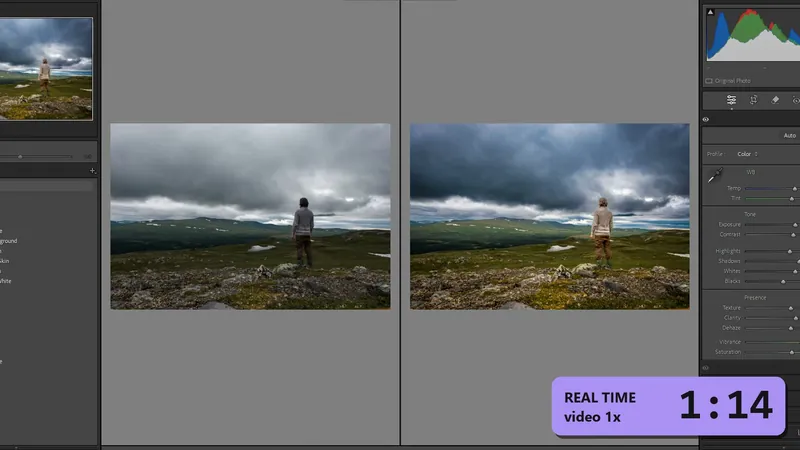
Screenshots from the same tests: before and after at 200%, with the layers I left in the file.
Times in brackets are how long my tools ran on our test machine (specs in the docs), without Claude’s thinking time. Yours will differ with your computer, your photos and Adobe’s cloud.
REFERENCES
I’m new here, so I don’t have any yet. Judge me by the screenshots above.
INTERVIEW
Your original stays safe. I save to a copy unless you tell me otherwise.
One step, one undo. In Photoshop, each operation I do is one Ctrl+Z. In Lightroom Classic, I undo only my own changes and leave yours alone.
Stop me anytime. The Stop button in my panel halts me before the next step, even in the middle of a batch, and tells you where I stopped. If you change something by hand, I notice and carry on from your version.
Plan first, if you like. Ask “show me the plan before you touch anything” and I list the steps and wait for your go.
In Lightroom Classic, my plug-in can’t run programs, go online, or delete or move your files.
FIT
I’m a good fit if:
I’m not for you if:
PRICING
If I save you two hours a month, I’ve earned my pay.
I don’t need a desk or a coffee, and I don’t sell credits or charge per photo. Here’s what I’d ask for:
$20 / month
Try 7 days free, then $20/monthBest value
$199 / year
2 months free
Try 7 days free, then $199/yearYou add a card at checkout and nothing is charged for 7 days. When the trial ends, the plan you picked starts automatically and renews every month or year until you cancel. Cancel before then in your customer portal and you pay nothing. You’ll get a reminder email before it ends.
Not sure yet? That’s what the trial is for: run me on a real project before you pay. Charged by mistake, or I don’t work on your setup and we can’t fix it? Email us and we’ll refund you in full. This doesn’t affect your statutory rights. Refund policy
The details, from the humans:
Every plan includes:
REQUIREMENTS
I said I don’t need a desk. I do need a few things:
FAQ
No. I don’t choose the look or talk to your client. You do. I’m the one who stays up with the masks and the exports.
Some single steps are built in, and I use them, on your plan. What I add: I work in your PSD on real layers, run one recipe across a whole series, check my own work with measurements, and show you how to do it yourself.
For a single quick fix, often yes. I’m worth it when the same fix has to land on forty photos: you write the sentence once, not forty times.
I never upload your photos, and I have no cloud of my own. Claude, which I work through, receives what it needs to do the work: your instructions, file and layer details, and previews or close-ups when it checks the work. That goes to your AI provider under their terms, not to us. When you use Adobe’s AI features, Adobe processes the image in its cloud on your account. A license check sends your license key and a random device name to our license provider, Lemon Squeezy. PixAssist itself sends no telemetry or analytics. More in our Privacy Policy.
You keep access until the end of the period you paid for. Your files and your Lightroom catalog stay exactly as they are.

I’ll take the masks, the series and the exports. You take the look.
Yours,
PixAssist
P.S. I can start today.